
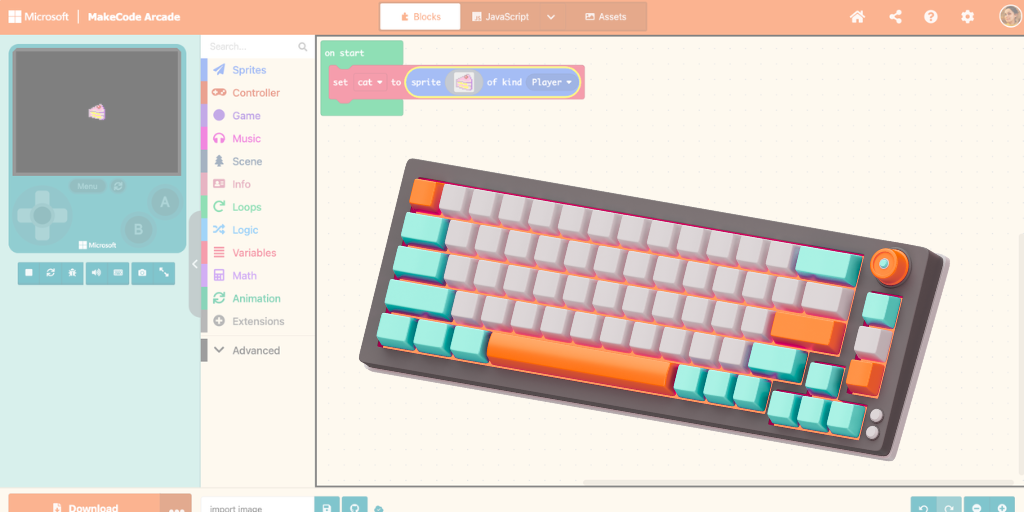
Blockly has been hard at work over the past year or so working to improve accessibility. It’s latest version, V13, now supports both screen readers and full keyboard accessibility. One of our favorite tools, Makecode Arcade, has added the keyboard functionality allowing users who cannot access a mouse or struggle with cursor controls to use this editor. To help educators implement this functionality, we created a keyboard shortcut quickguide and how to video both available below.
Want to create your own more detailed keyboard guides for your class? Our friends at Code in the Schools have created these amazing helpful PowerPoint templates and other resources to get you started.
Sprite Editor Alternatives
One area of the editor that still remains heavily cursor dependent is the sprite editor. Although some of the toolbox tools are accessible through a keyboard shortcut, the drawing area is only accessible using a mouse. To help students with physical disabilities who may struggle with this, we both developed a tool and sharing another created one.
Keyboard Sprite Editor

The Keyboard Sprite Editor, is a web tool that uses keyboard navigation and shortcuts to draw a sprite using standard sizes. The tool then generates javascript code that can be copied and pasted into the editor.
Images to Arcade

Images to Arcade, developed by Coder Dojo Ennis, is another tool that allows a user to upload an image, provide customizations, and then generate either javascript or python code that can be pasted into the editor.
Note: some assistance might be required as currently the file picker area of the tool is only accessible through a mouse click.
How to Video
To get you started, we created this short walkthrough of how to use both these tools.
❤️ This resource was made possible thanks to the Blockly Accessibility Fund.